
Choose the columns buyers care about
Maya’s table shows too much. In this lesson you will pick the columns that help people buy and set what shows on each device.
Maya looks at her table and realizes it is showing too much. Customers buying tea care about the name, a photo, the price, and whether it is in stock. The rest is noise on a phone screen.
You will set up your columns the same way: show what helps people decide, hide the rest, and control what appears on each device.
Open the Columns step
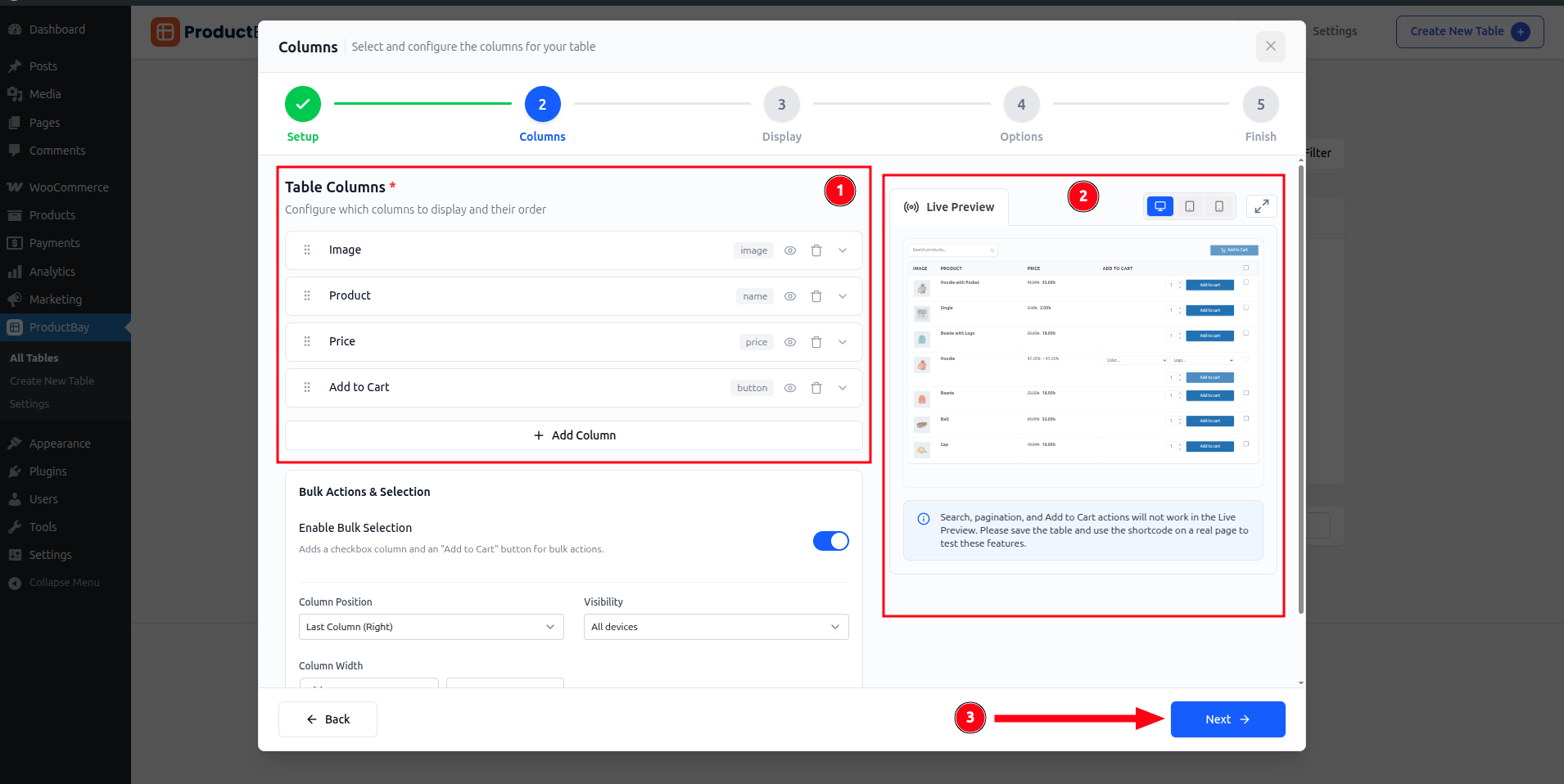
Choose and arrange columns
- Pick the columns that help people buy
Add Image, Name, Price, and Stock. Add SKU or Summary only if your customers use them.
- Drag to reorder
Drag and drop columns so the most important detail comes first. Most stores lead with image and name.
- Set visibility per device
Toggle each column on or off for desktop, tablet, and mobile so the table stays clean on small screens.
Per-device visibility is the easiest mobile win. Maya keeps image, name, and price on phones, and hides SKU until there is room for it on larger screens.
With the right columns in place, Maya’s table is finally easy to scan. Next she makes it fast to search and quick to buy from.
Set up your columns now.
Arrange your columns in the free plugin as you follow along. It takes only a few minutes.