
 ProductBay Course
Build a restaurant menu your diners can order from.
Follow Lina, a cafe owner, as she turns a slow WooCommerce shop into a clean, one-screen menu that takes orders. Free plugin, no code.
Lina runs Café Verde and just launched online ordering. Her WooCommerce shop shows one big product card per item, so a customer scrolls forever to read the menu. She wants a clean menu page: drinks and food, prices, and an order button, all on one screen.
Build the menu as a table
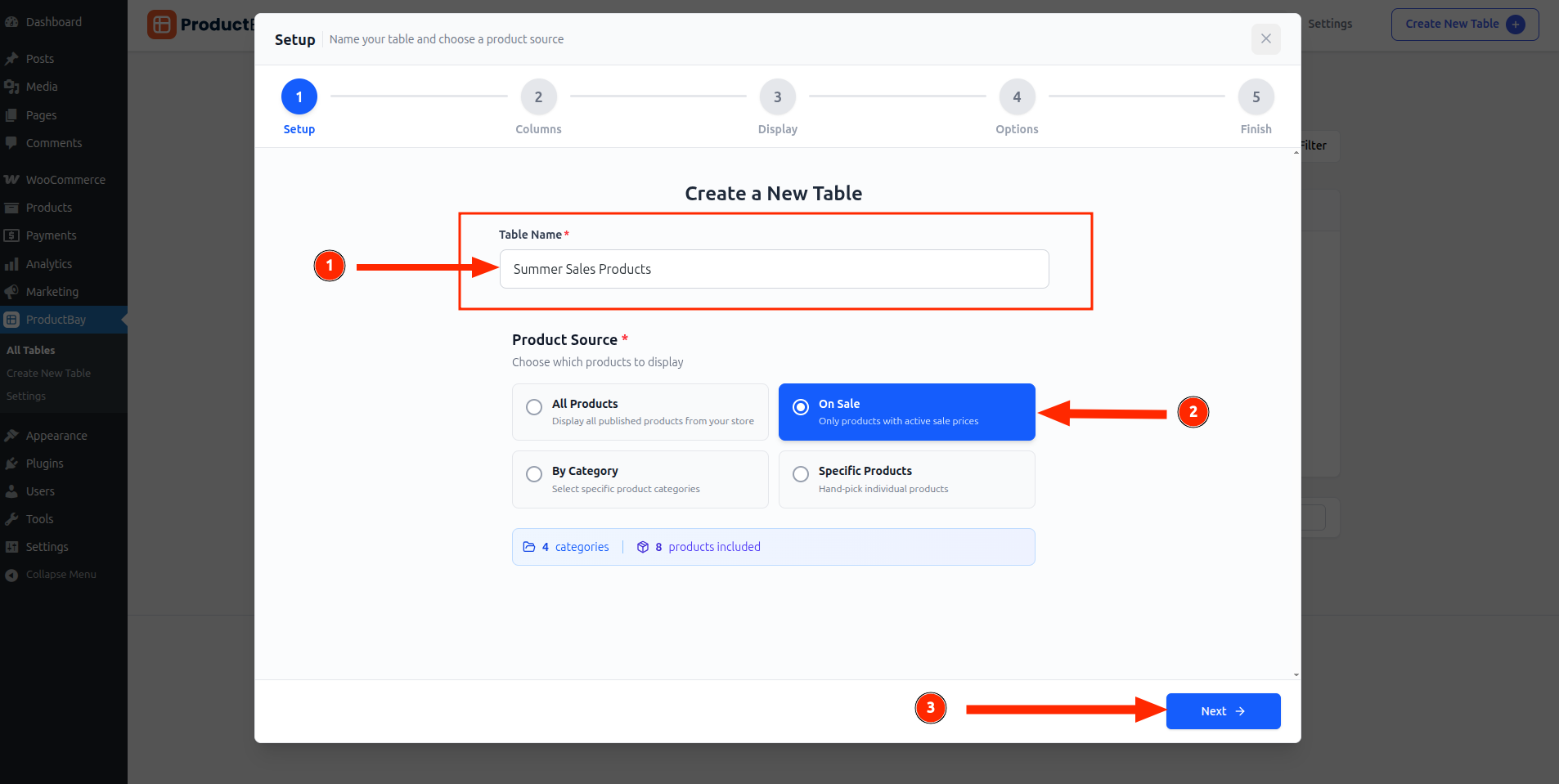
Lina opens ProductBay, names a table “Menu,” and sets the product source. She picks By Category so she can build a drinks table and a food table, each from the matching WooCommerce category.
Show only what a diner needs
In the Columns step she keeps it simple: image, name, a short summary, and price. No SKU, no stock counts, just what a hungry customer reads.
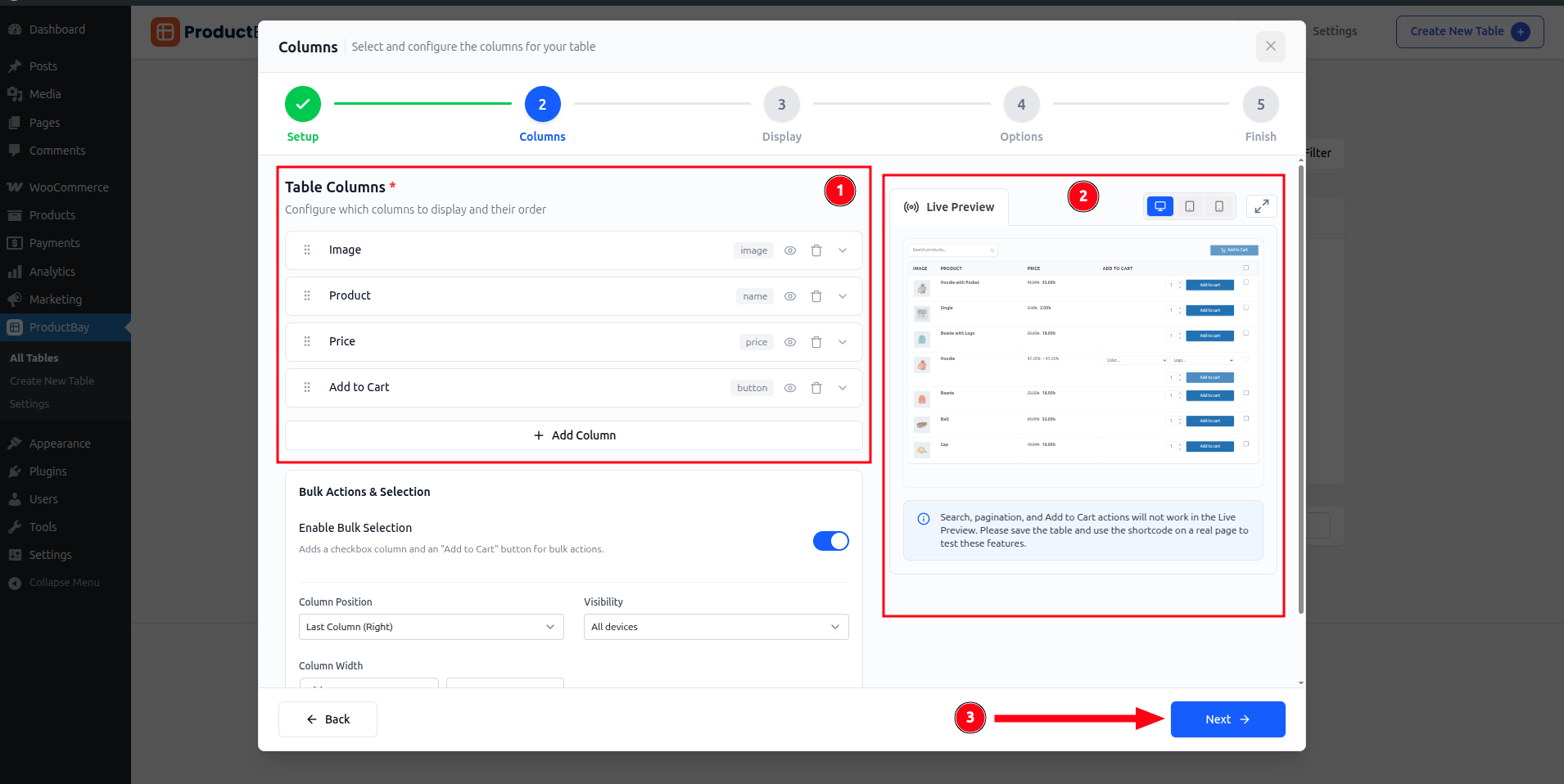
Use per-device visibility to hide the summary on phones so the menu stays tidy on a small screen, then show it on tablets and desktops.
Add ordering and publish
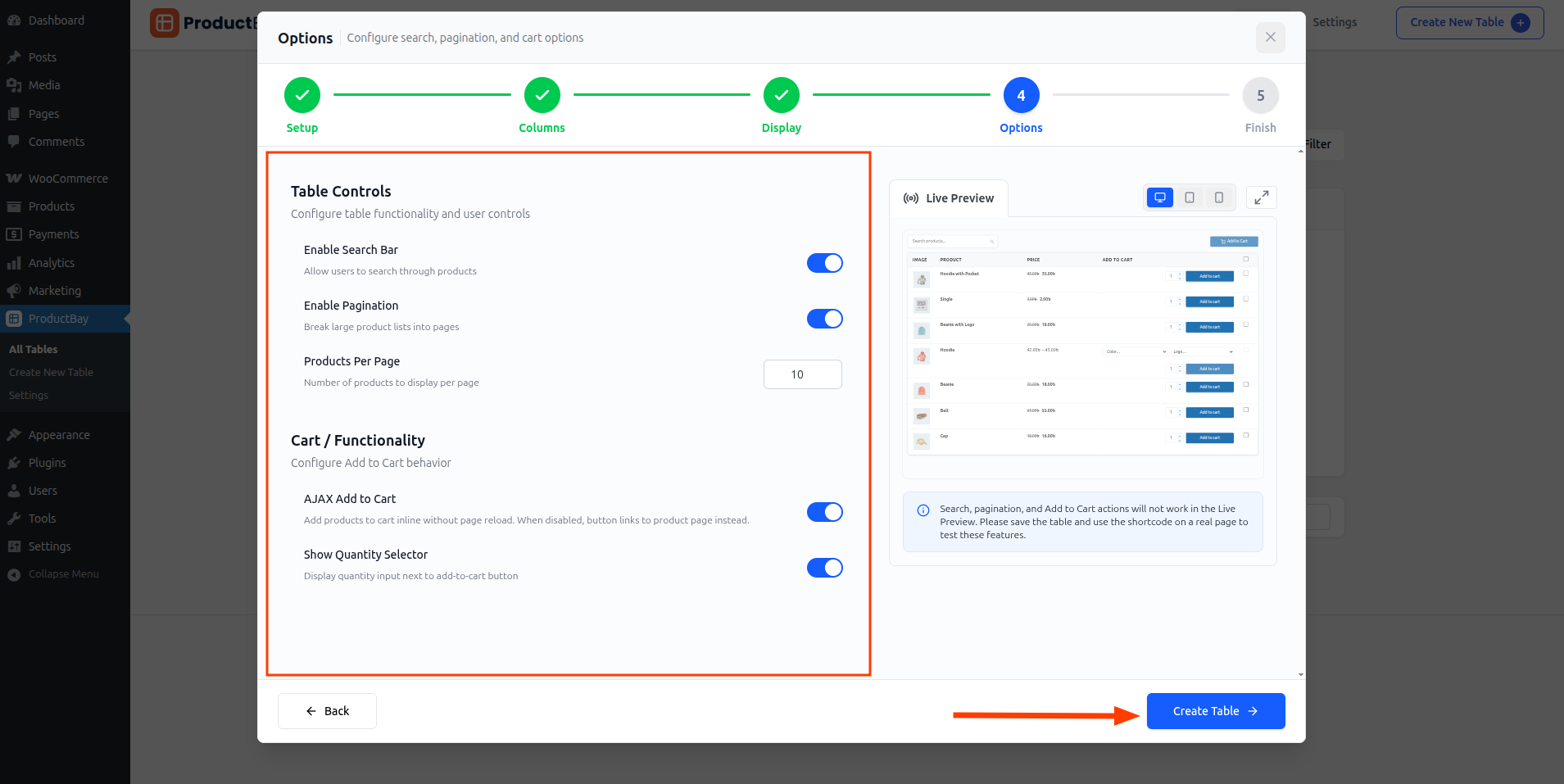
In the Options step Lina enables add-to-cart so diners order right from the menu, then copies the shortcode and drops it onto her Menu page.
Café Verde’s online menu now fits on one screen, reads like a real menu, and takes orders. Lina built it in an afternoon on the free plugin.
Put your menu online today.
Install ProductBay free and build a menu table for your restaurant or cafe in one sitting.