
 ProductBay Course
Make your tables look designed, not default.
Follow Noah, a boutique owner, as he styles ProductBay to match a particular brand using only settings and a live preview. Free plugin, no code.
Noah runs Maison Noir, a boutique with a very particular look. The default table feels generic next to his moody, editorial brand. He wants the table to look designed, not bolted on, because on his store, design is trust.
Design in the live preview
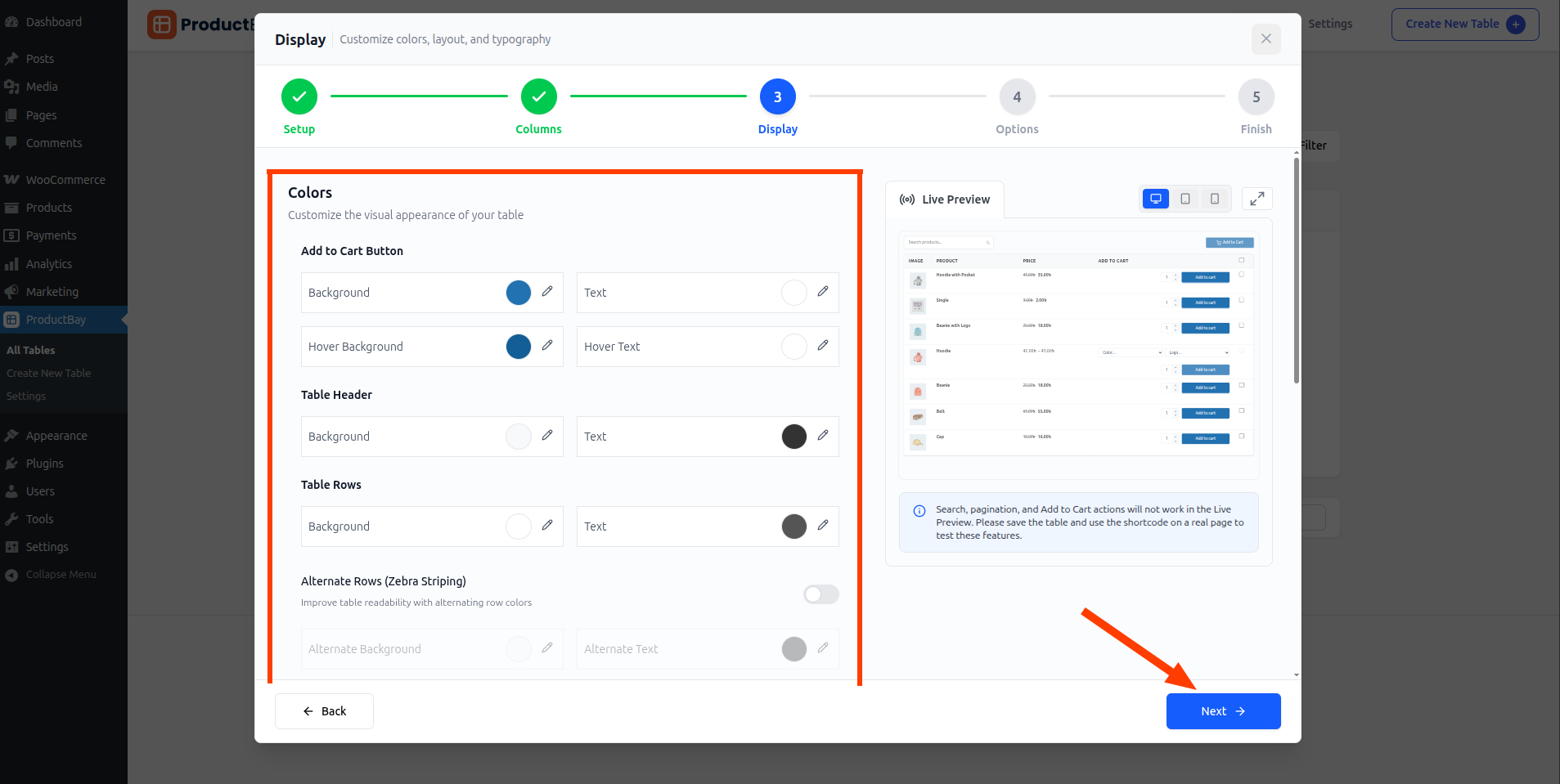
Noah works entirely in the wizard’s Display step, where every change appears instantly in a side-by-side preview. No saving, no refreshing, no guesswork.
Dial in the details
- Set header and body colors
Match the table to your palette so it reads as part of the page.
- Style buttons and hover
Choose button colors and hover effects that match your store’s calls to action.
- Tune borders, padding, and type
Adjust spacing and typography until the table feels considered, not default.
- Add readability touches
Use zebra striping and row hover so wide rows are easy to track.
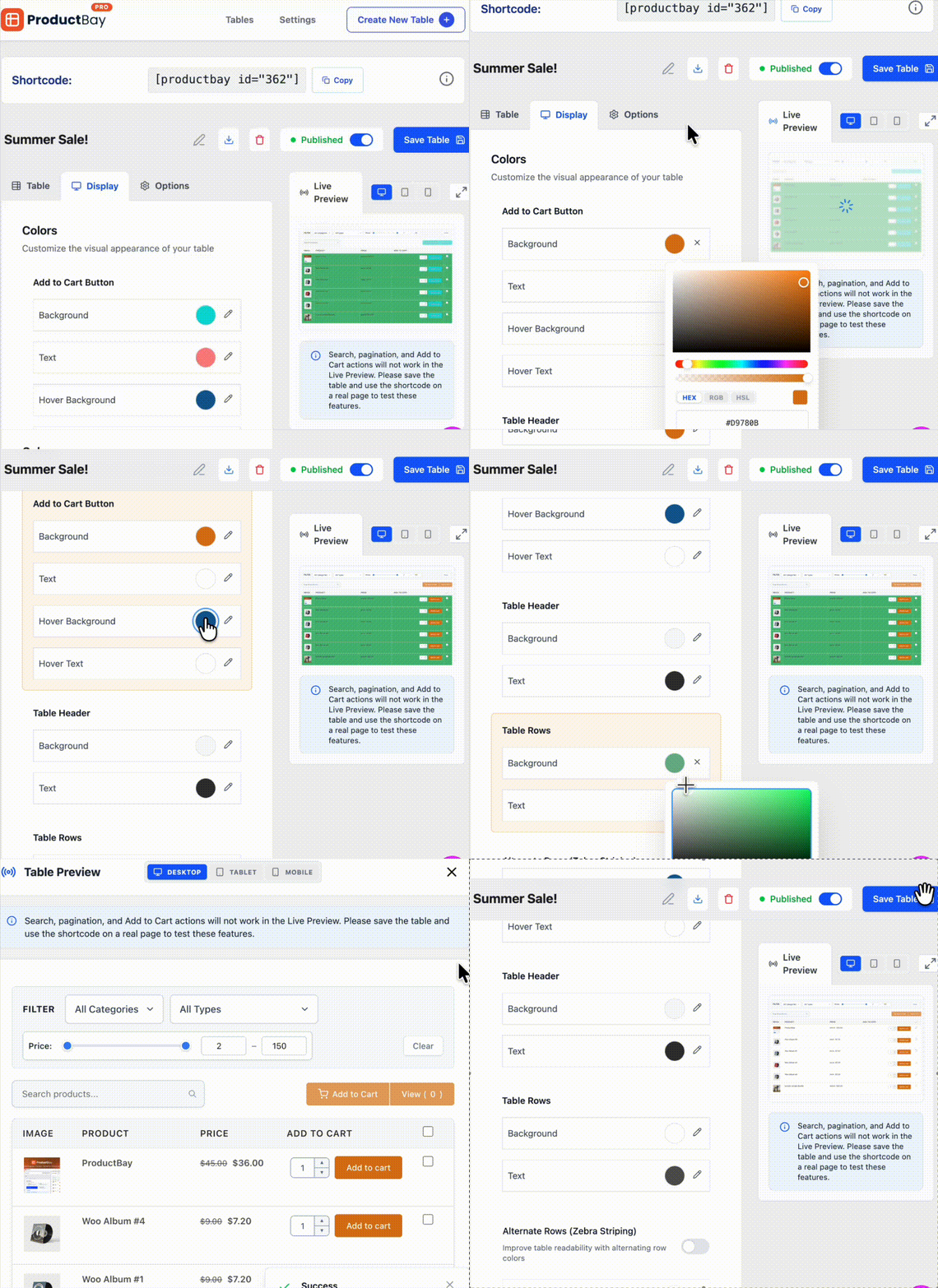
ProductBay scopes each table’s CSS to that table, so you can give two tables completely different looks on the same site without them clashing.
Reuse it everywhere
Once Noah nails a look, it travels with the table wherever he embeds it, so every page that shows it stays on-brand.
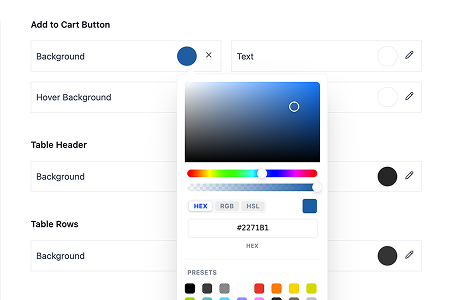
Maison Noir’s tables now look as designed as the rest of the site. Noah did it with settings and a live preview, no CSS required.
Style your tables to match.
Install ProductBay free and design a table that looks like part of your store.