Course
Increase Your Sales: The “EarlyBird Discount” Strategy for WooCommerce
Sell more products faster with a simple, practical WooCommerce discount strategy.
Requirements: WordPress, WooCommerce, CampaignBay
Welcome to your first step in mastering WooCommerce sales! This module focuses on the “Early Bird” strategy. Think of this like a “Door Buster” sale at a physical store, where the first few people in line get the best deal.
What is an “EarlyBird Discount” Offer?
An EarlyBird offer is a discount that automatically expires after a specific number of orders are placed (e.g., “50% off for the first 10 customers”). Unlike a timed sale, this creates quantity-based scarcity.
Benefits
- Instant Sales Spikes: Triggers a quick burst of revenue the moment the campaign starts.
- High Engagement: Creates “FOMO” (Fear Of Missing Out) that encourages customers to visit your site immediately.
- Low-Risk Testing: You can offer a deep discount without losing profit on your entire stock because you limit it to only the first few buyers.
- Competitive Advantage: CampaignBay is the only major plugin in this comparison to have the EarlyBird Discount (First X Orders) feature “Done”.
Implementation Steps
Step 1: Create the Product in WooCommerce
Before opening CampaignBay, ensure the plant exists in your store:
- Product Name: ZZ Plant
- Regular Price: $35.00

Step 2: Access the Early Bird Feature
- Log into your WordPress Dashboard.
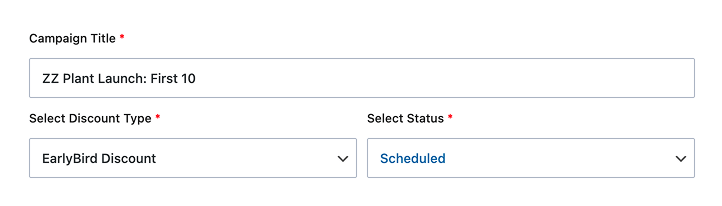
- Navigate to CampaignBay >EarlyBird Discount in Add New Campaign.
- Click Add New Campaign and title it “ZZ Plant Launch: First 10”.
Step 3: Configure the “First 10” Logic
This is the core of the strategy.
- Targeting: Select Specific Products and search for “ZZ Plant.”
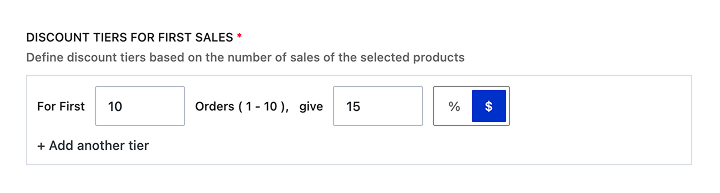
- First X Orders: Enter
10. This tells the system to automatically stop the discount after the 10th buyer. - Set User Limit (Product Based): Enter
1.- Why? This prevents one “plant flipper” from buying all 10 discounted ZZ plants. It ensures 10 unique customers get to experience the Plantera brand.
Step 4: Apply the $15 Discount
- Discount Type: Choose Fixed Amount.
- Discount Value: Enter
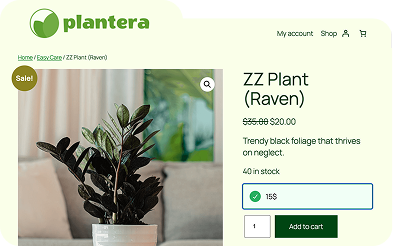
15.- Note: The price will automatically drop from $35 to $20 for the first 10 customers.

Step 5: Schedule the “Drop”
- Go to the Scheduled Campaigns section within the Early Bird settings.
- Set a Start Date (e.g., Friday at 9:00 AM).
- The “Race” Strategy: Announce on Plantera’s social media: “The Raven ZZ drops Friday at 9 AM. The first 10 people to checkout get $15 off!”

Step 6: Display the Urgency Message
- In the Discount Message Format box, type:
- “Be one of the first 10! Only {order_limit} spots left to get this ZZ Plant for $20! {fixed_amount_off} discount applied.”
- This message will appear directly on the product page, updating in real-time as people buy.

What you can learn from this course
6 Steps • 2 Minutes
- 1: Create the Product in WooCommerce
- 2: Access the Early Bird Feature
- 3: Configure the “First 10” Logic
- 4: Apply the $15 Discount
- 5: Schedule the “Drop”
- 6: Display the Urgency Message
Subscribe for CampaignBay Pro
Get Demo Site
Download With
Plantera Demo site, full free