
Maya builds her first table
Meet Maya. Her tea shop needs one scannable page of products and prices. In this lesson you will install ProductBay and build your first table, right alongside her.
Maya runs Leaf & Bloom, a small online shop selling loose-leaf teas and a few brewing accessories. Her catalog has grown to around ninety products, and lately customers keep emailing the same thing: “Is there a page where I can just see everything and the prices together?”
Her standard shop layout makes them click into each tea, one at a time. Maya wants a single, scannable page. Today she fixes that.
You are going to do exactly what Maya did: install ProductBay and create your first product table with the guided wizard. It takes a few minutes, and you will not touch a line of code.
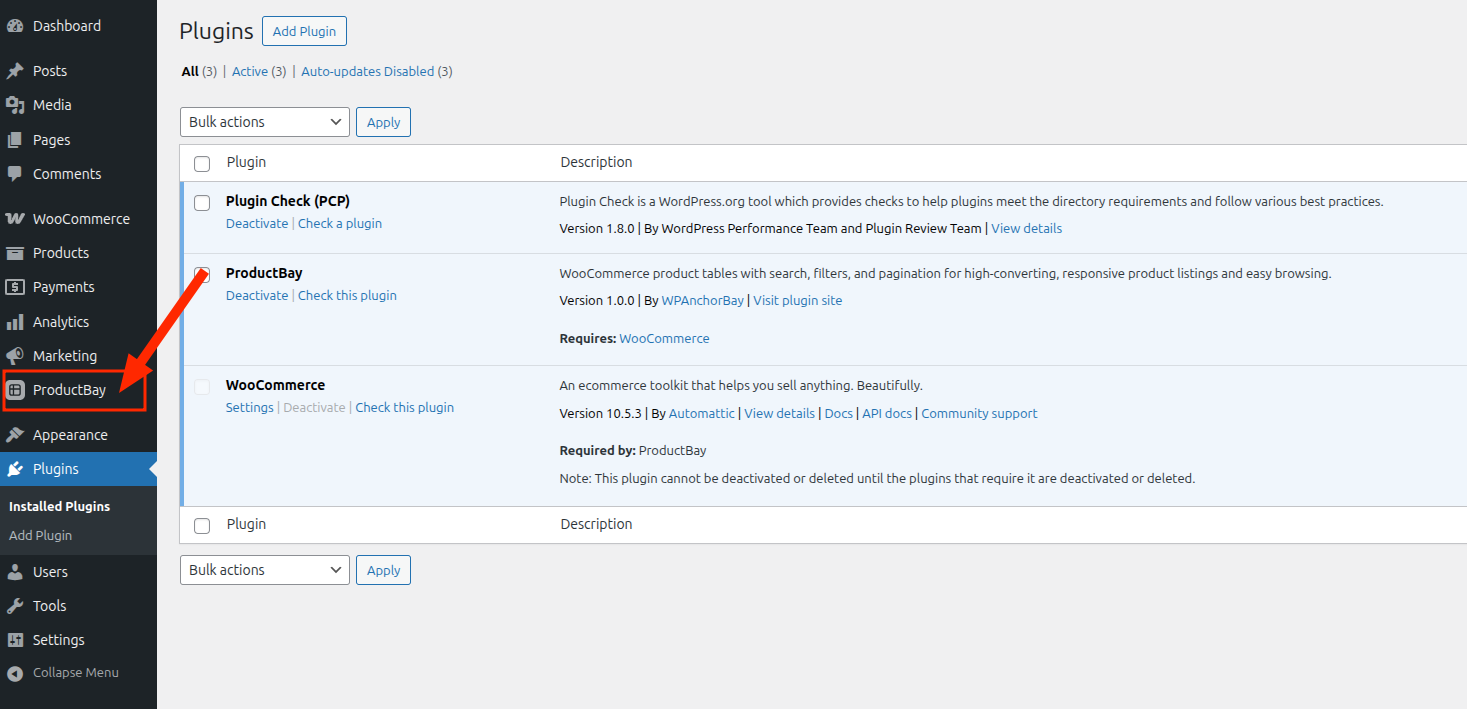
Open ProductBay
After installing and activating the free plugin, Maya finds ProductBay in her WordPress admin sidebar and clicks in.
The table builder opens with a wizard, ready to create her first table.
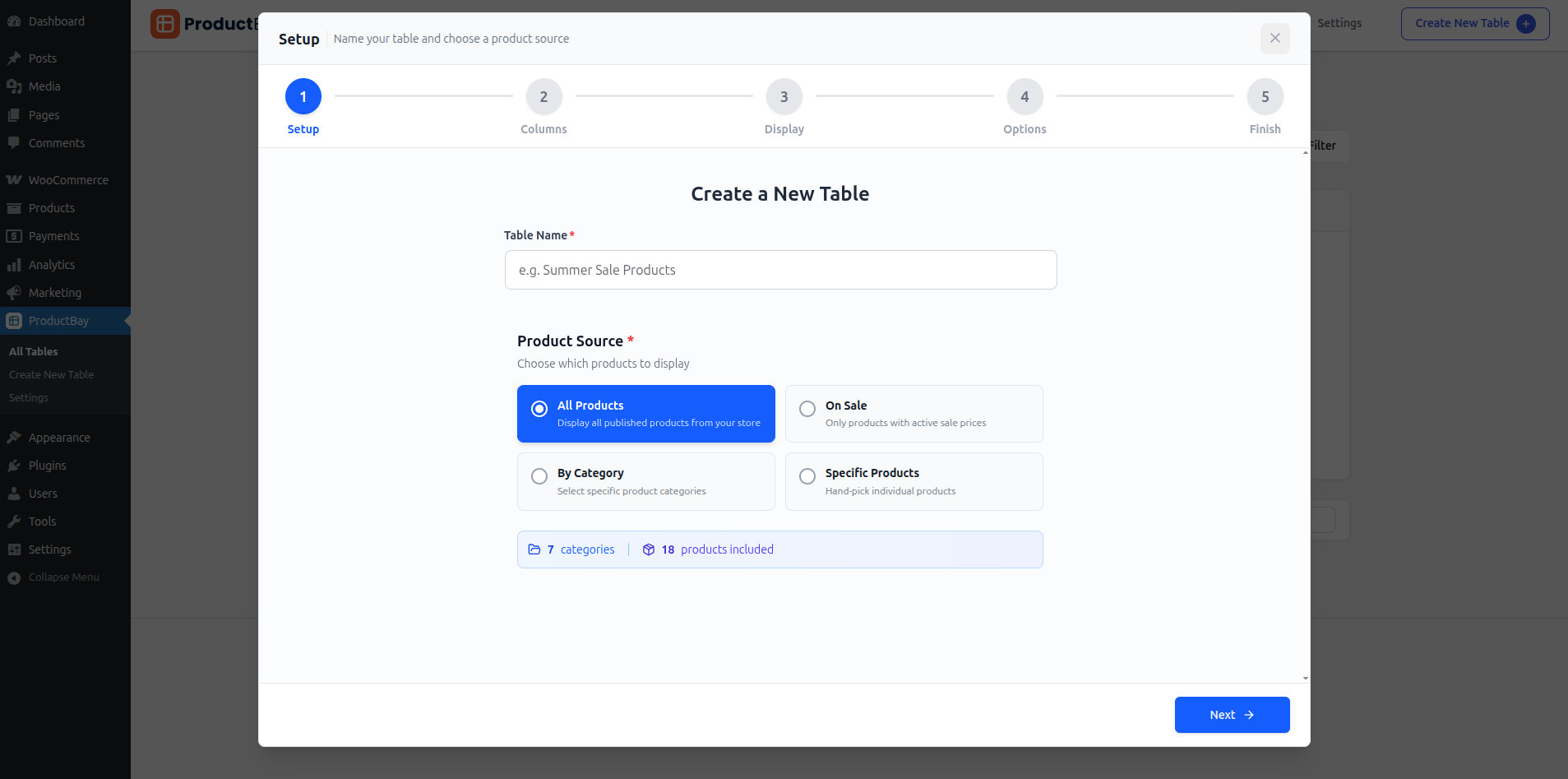
If the wizard does not appear, click the floating wizard button in the bottom-right corner of the screen to launch it any time.
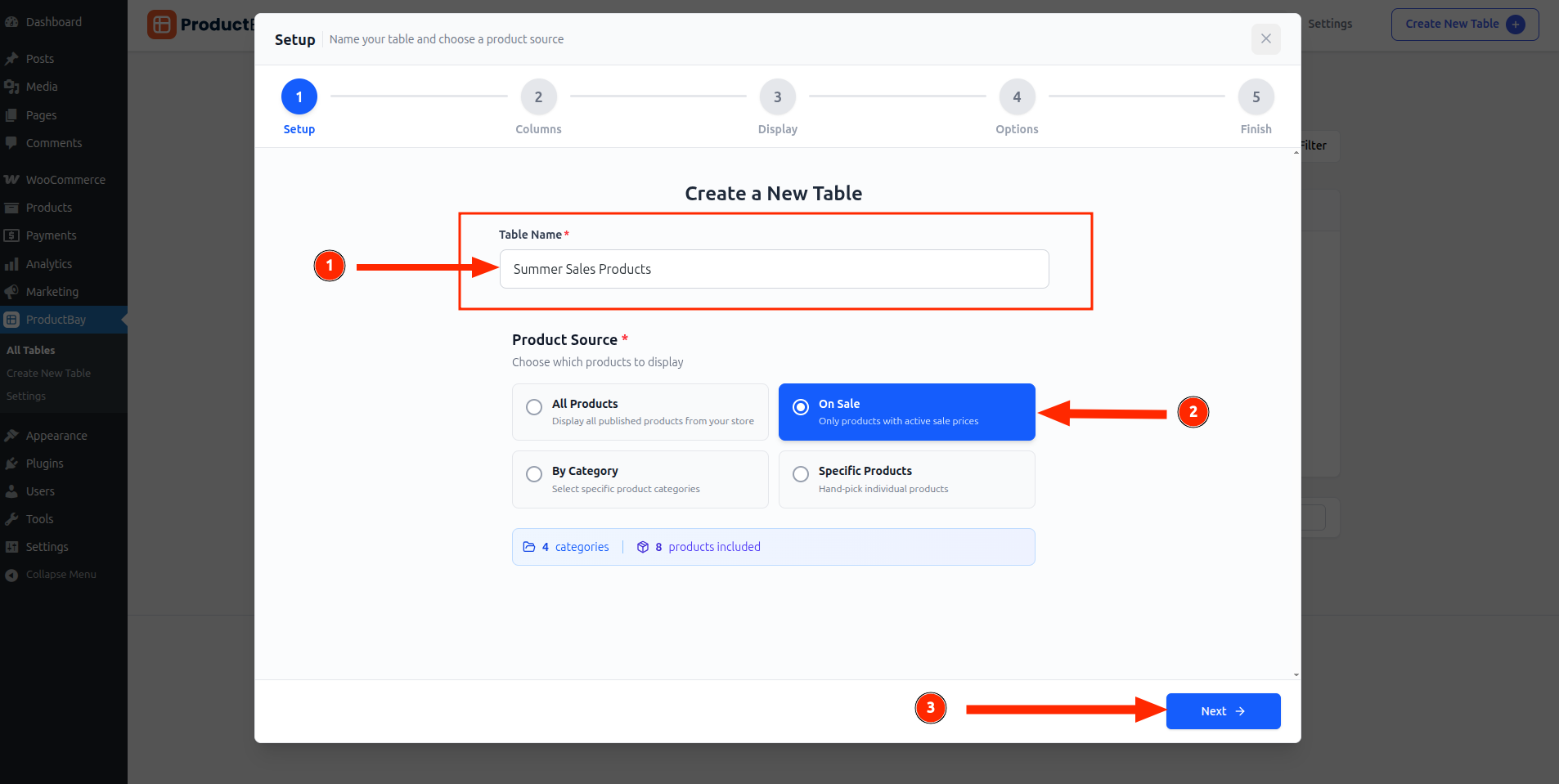
Name it and choose products
Maya names her table and picks where its products come from. She chooses All Products for now, though she could just as easily pick a category, only on-sale items, or hand-picked products.
Finish and celebrate
She steps through the rest of the wizard, which we cover next, then hits Create Table. A little burst of confetti confirms the table is live.
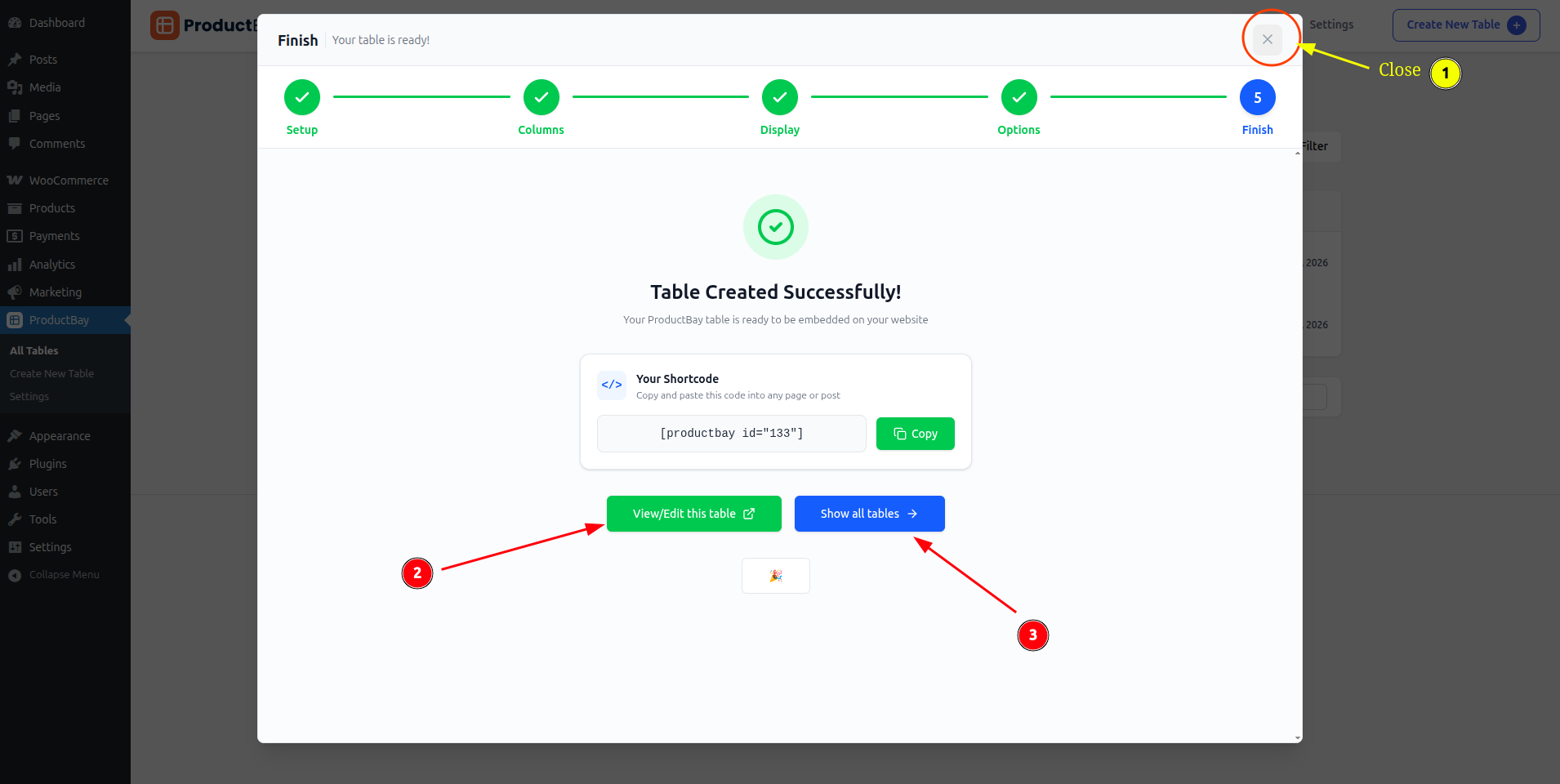
In under five minutes, Maya went from “customers keep asking” to a real product table sitting in her store. Next, she makes it look like Leaf & Bloom.
Start where Maya started.
Install ProductBay free and build your first table while you read. It is the fastest way to learn.