
Put your table on a page
Maya’s table is ready. In this final lesson you will copy the shortcode, embed it on a real page, and see how her story pays off.
Maya’s table is built, styled, and fast. It is sitting in the ProductBay dashboard. Now it needs to live on a real page her customers can reach.
Copy the shortcode
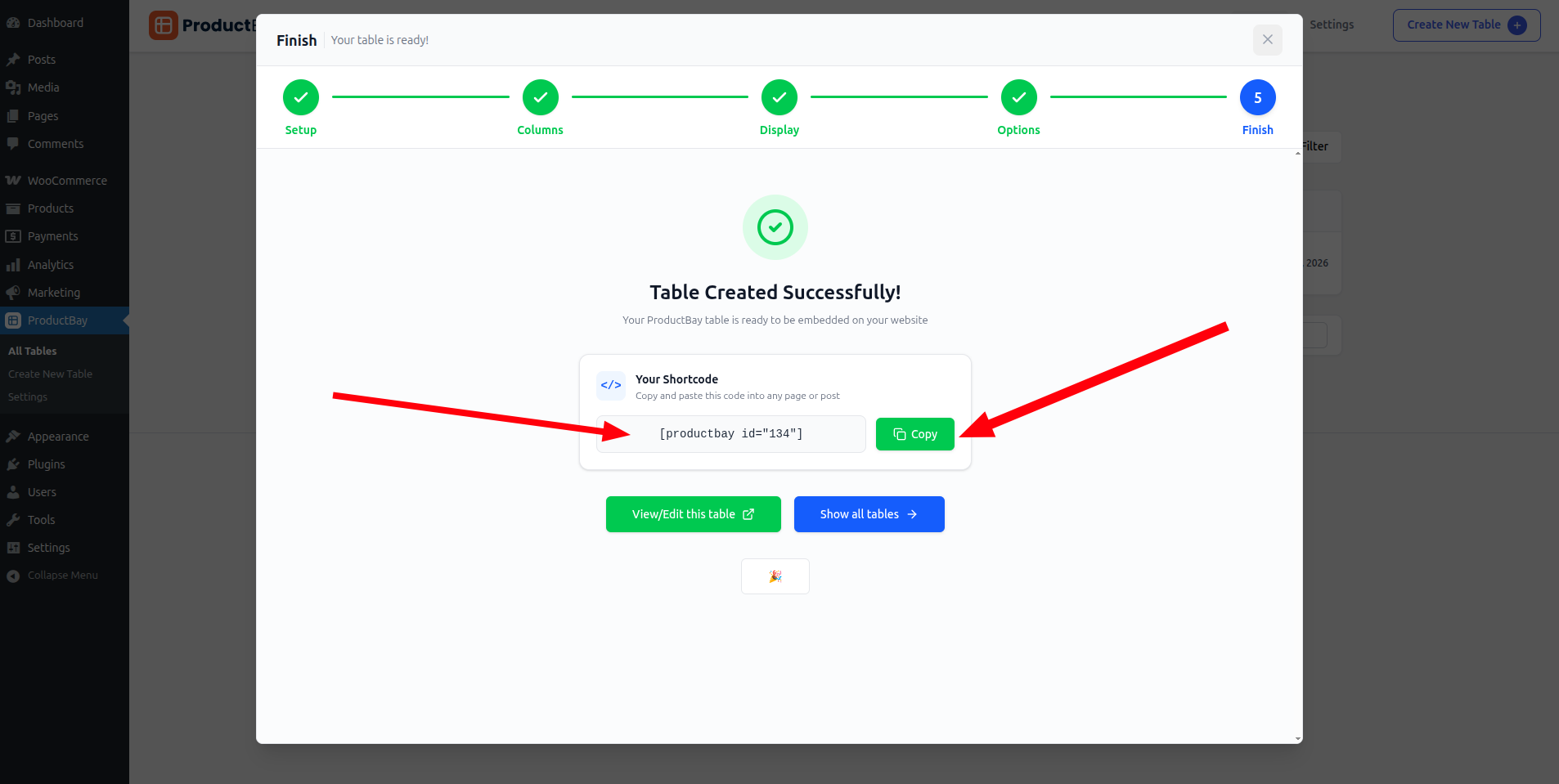
When the table is saved, ProductBay gives Maya a shortcode like . She copies it straight from the finish step.
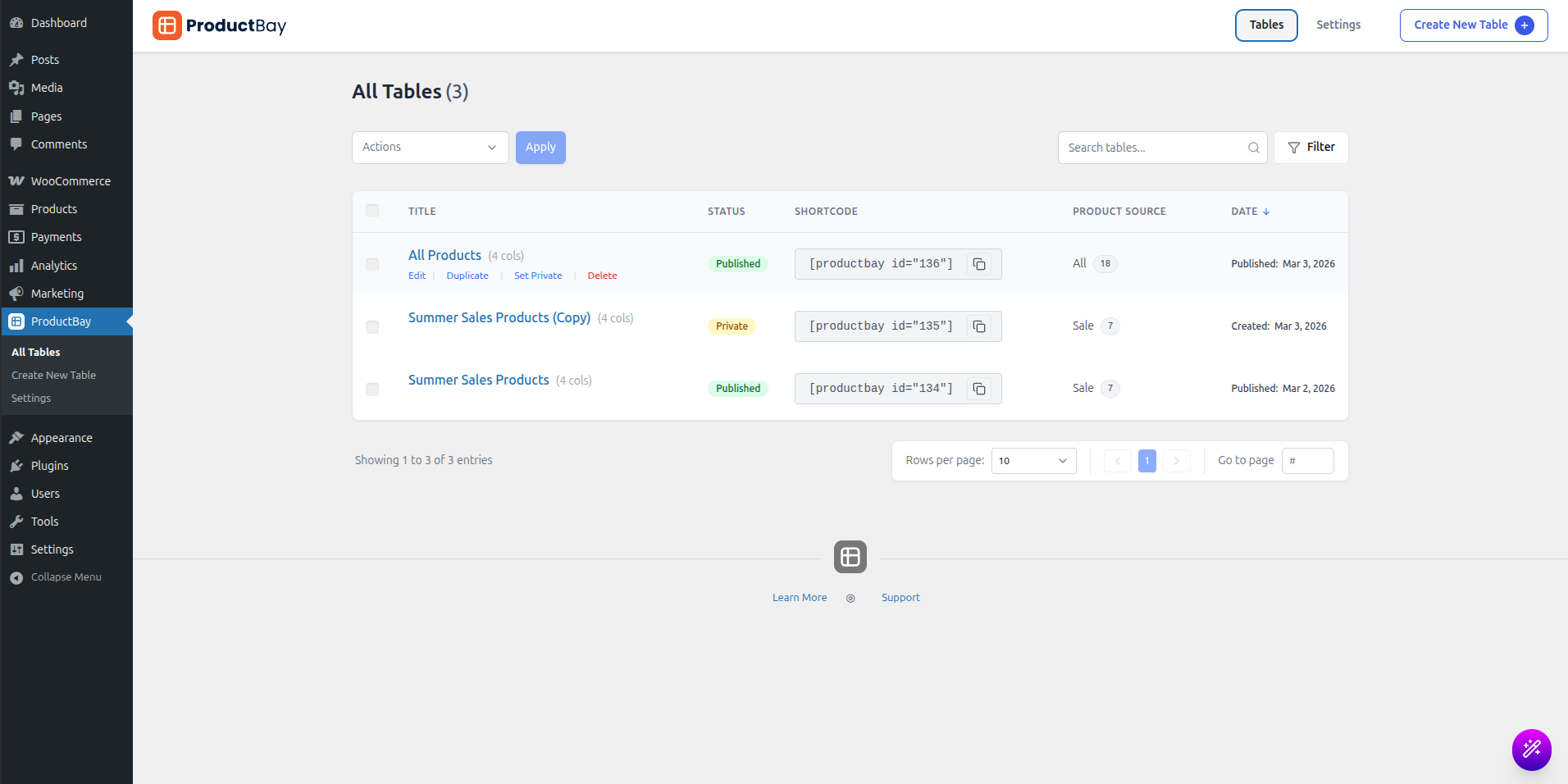
She can also grab it any time from the tables dashboard, where every table lists its shortcode.
Embed it on a page
- Open or create a page
Go to Pages, Add New, or edit an existing page.
- Add a Shortcode block
In the block editor add a Shortcode block, or paste directly into the Classic Editor or any page builder.
- Paste and publish
Paste , then publish. Visit the page to see your table live.
ProductBay only loads its assets on pages that actually contain a table, so adding one does not slow down the rest of your store. You can place the same table on several pages, or several tables on one page.
Where to grow next
Everything Maya built runs on the free plugin. As Leaf & Bloom grows, ProductBay Pro adds custom field columns, a combined column builder, advanced filters, import and export, and priority support, for when she needs them.
A week later, Maya’s “All Teas” page is one of her most visited. Customers finally have the single, scannable page they kept asking for, and it took an afternoon. That is the whole point.
You built it. Now ship it.
If you have not installed the free plugin yet, grab it from WordPress.org and put your table live like Maya did.