
Design a table that matches your store
Maya’s table works but looks generic. In this lesson you will style colors, buttons, borders, and type so the table feels like part of your store.
Maya’s table works, but it looks like a plain spreadsheet dropped onto her cozy, cream-and-green storefront. “It needs to feel like us,” she thinks.
You will do the same: shape the table’s design so it looks like a natural part of your store, all from the wizard’s Display step with a live preview.
Open the Display step
In the wizard, Maya moves to the Display step. Every change she makes shows instantly in the preview beside her.
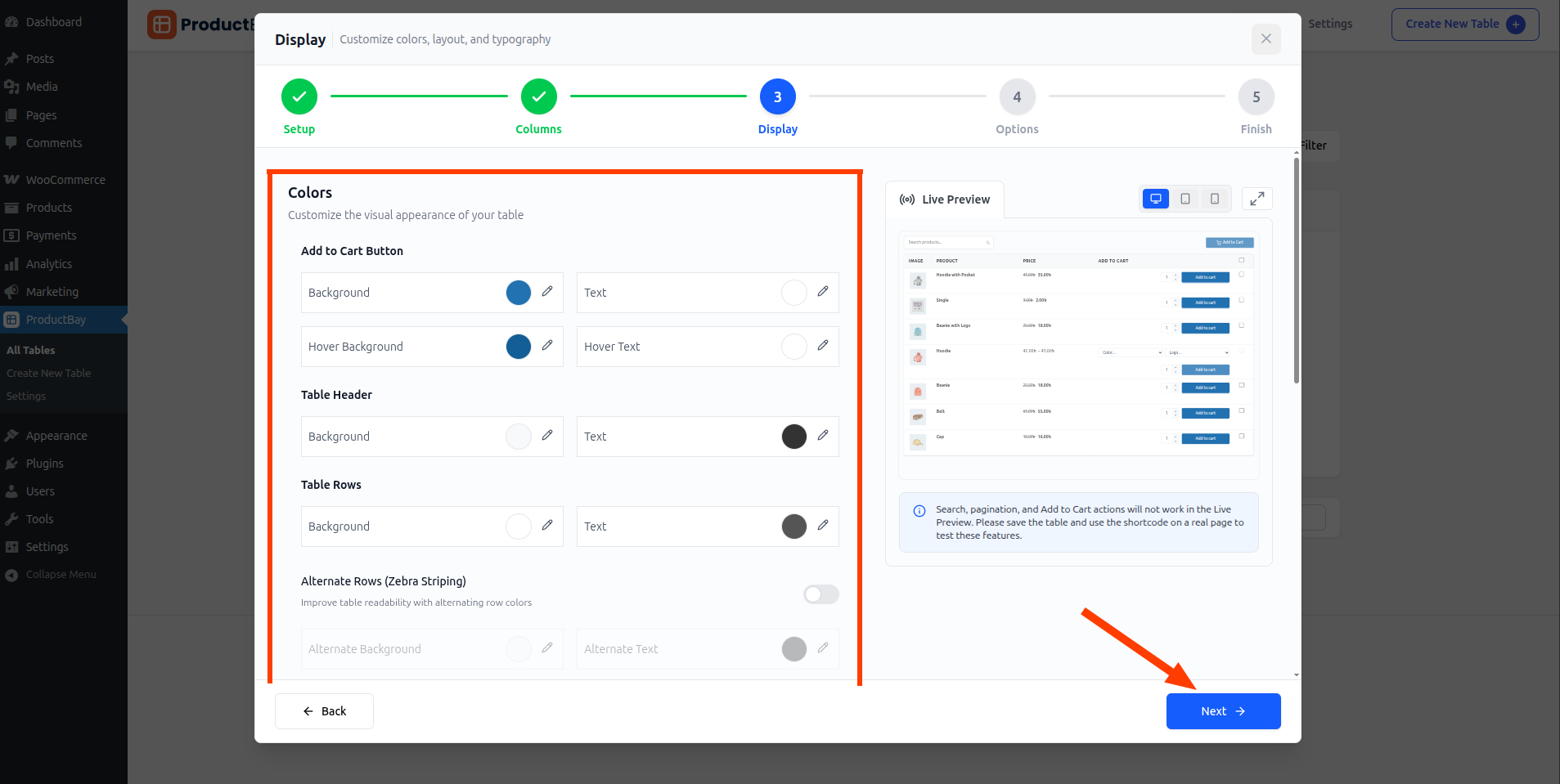
Make it yours
- Set header and body colors
Match them to your brand so the table blends into the page instead of fighting it.
- Style the buttons
Choose button colors and hover effects that match your store’s calls to action.
- Tune borders and padding
Adjust border style and cell padding until rows feel comfortable to read.
- Set your typography
Align the font choices with the rest of your store for a consistent feel.
The preview updates in real time as you change settings, so you never have to save and refresh to see how a choice looks.
A few colour tweaks later, the table reads like part of Leaf & Bloom rather than a bolt-on. Now Maya decides what information each row should actually show.
Style yours as you read.
Open the free plugin, change a color, and watch the live preview update with you.