
Make a big catalog easy to navigate
Daniel’s catalog is huge. In this lesson you will add SKU and stock columns and turn on search and filters so buyers find items fast.
Daniel’s full catalog is hundreds of items. If a cafe owner cannot find “oat milk, 12-pack” in a couple of seconds, the speed he just built is wasted.
Add the columns buyers rely on
In the Columns step, Daniel adds the details wholesale buyers check before ordering: SKU and stock, alongside image, name, and price.
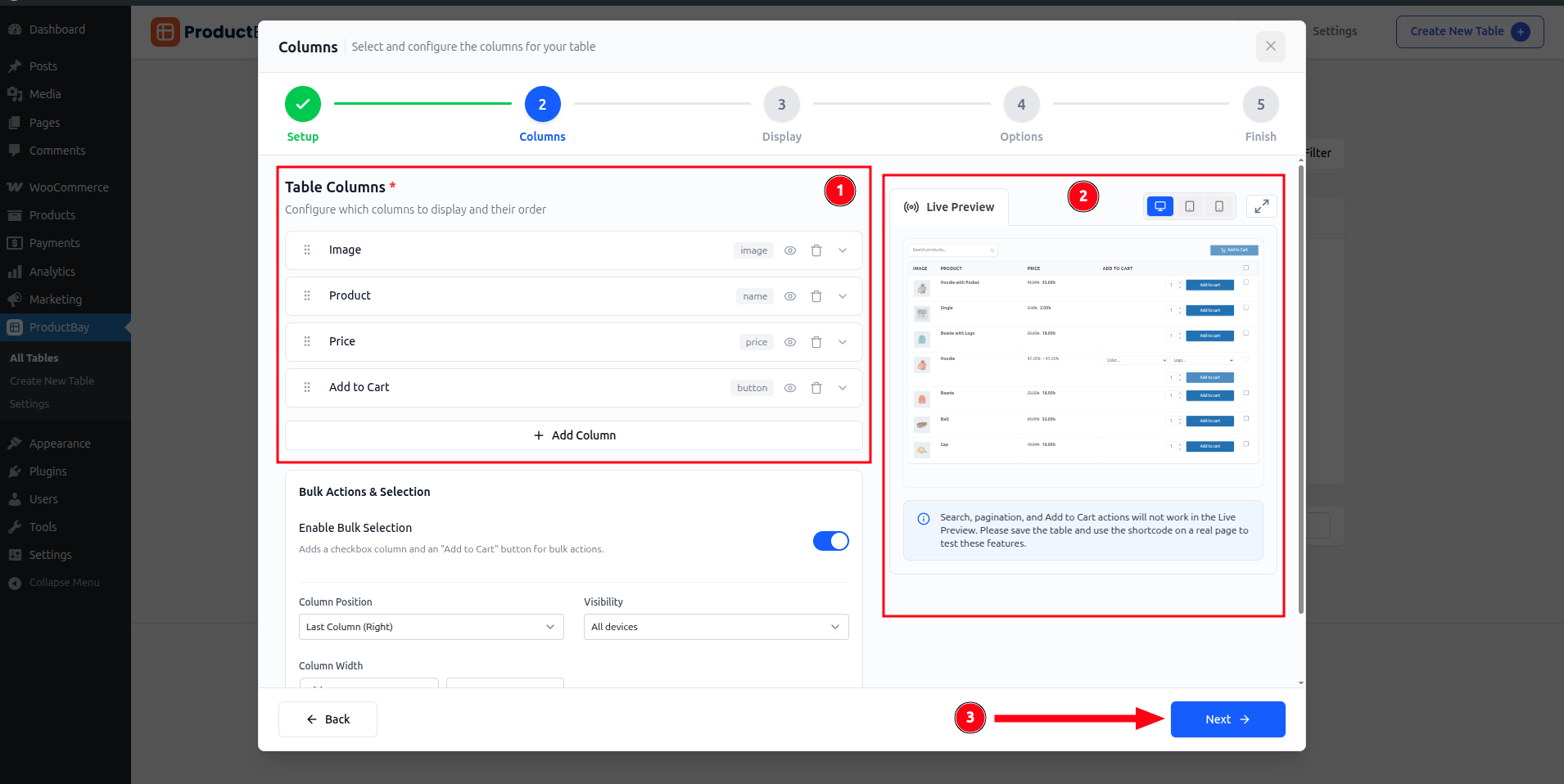
- Show SKU and stock
Add SKU so buyers match their internal codes, and stock so they see availability before ordering.
- Reorder for scanning
Drag columns so the most useful details come first.
- Enable search and filters
In the Options step, turn on search and category filters so buyers jump straight to what they need.
On the live order form, search and filters narrow a big catalog instantly.
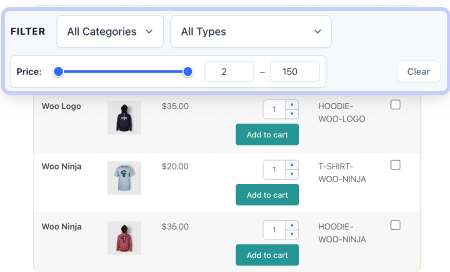
Live stock and SKU columns cut the back-and-forth that slows B2B orders. Buyers confirm availability themselves instead of emailing to ask, which means fewer corrections.
Now Daniel’s biggest accounts can find any item in seconds. The order form is fast to navigate and fast to buy from. One step left: make it look the part and get it in front of his cafes.
Make your catalog searchable.
Turn on search and add SKU and stock columns in the free plugin and watch a big catalog become easy to navigate.